- Open Apple Mail.
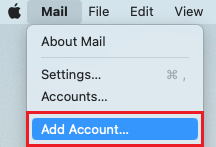
- If you’re a new user, skip to step 3. Otherwise, select Mail, and then Add Account.
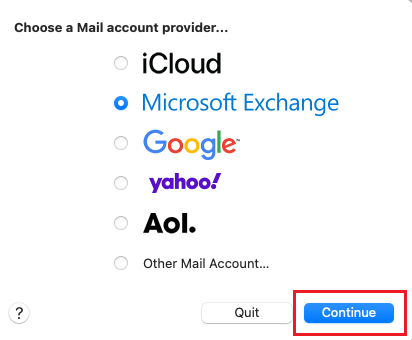
- Select Exchange, and then Continue.
- Enter your name and email address, and select Sign In.
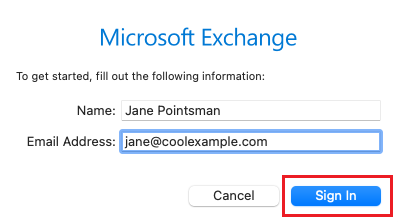
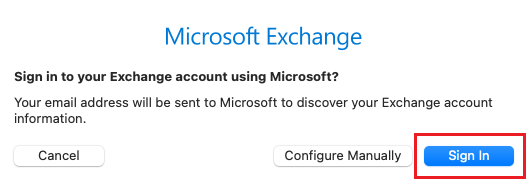
- Select Sign In.
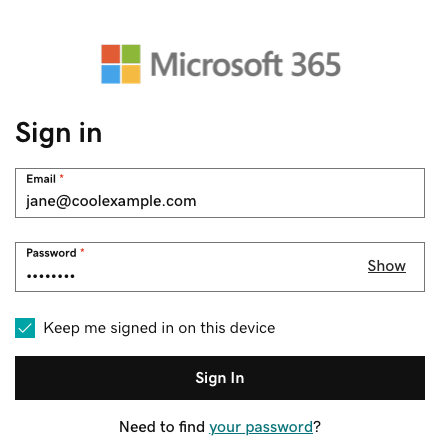
- Enter your email password, and then select Sign In. You might need to select your account type as Work or School, not Personal, to continue.
- If your admin enabled multi-factor authentication (MFA), verify your account or set up the Authenticator app.
- You might get a request for permission to access your account, select Accept.
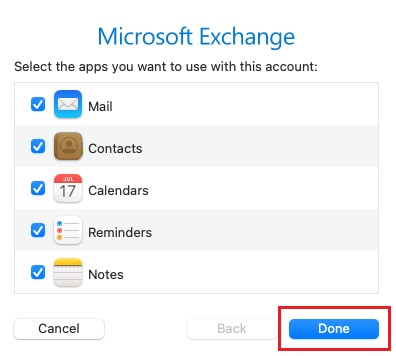
- Select Done. You can come back and edit these settings at any point.
Your Microsoft 365 email is now set up on your Apple Mail.